
Migrating from Salesforce to HubSpot is one of the most common CRM projects B2B teams undertake — and one of the most frequently botched. A bad migration means lost pipeline, angry reps, and reporting that no longer reflects reality. Here is the exact sequence to do it cleanly.
Why Companies Are Leaving Salesforce for HubSpot
Salesforce is powerful, but for most SMBs and mid-market companies it is overbuilt, expensive, and admin-dependent. The average Salesforce customer spends $100,000 to $300,000 per year on licenses, a dedicated Salesforce admin, and ongoing developer time for customizations. HubSpot delivers equivalent sales and marketing functionality at a fraction of the cost, with a UI that actual reps use instead of avoid.
The most common triggers for the switch: the Salesforce renewal comes up and the cost no longer matches the company stage. The admin who manages Salesforce leaves. A new VP of Sales comes from a HubSpot background. Or the marketing team has been running HubSpot Marketing Hub in parallel and the company wants to unify on one system.
Step 1: Pre-Migration Data Audit and Cleanse
Never migrate bad data. Moving dirty records from Salesforce to HubSpot is not a fresh start — it is importing all your old problems into a new system. This step takes longer than most teams expect and is where most migrations go wrong.
- Archive inactive records: Any contact without email activity, call activity, or deal association in the last 18 months should not migrate. Export them as a backup, then exclude from the import. Migrating 80,000 contacts when 30,000 are dead weight inflates your HubSpot tier cost immediately.
- Deduplicate before export: Run a deduplication pass in Salesforce before exporting. Duplicates that exist in Salesforce become duplicates in HubSpot, and merging them post-migration is 3x more work than cleaning them upfront.
- Standardize picklist values: Every dropdown field in Salesforce that you are migrating needs its values mapped to the equivalent HubSpot values. A Salesforce Stage value of "Qualified" may need to map to "Decision Maker Bought In" in your new pipeline. Document this mapping in a spreadsheet before touching any import tool.
- Audit custom fields: Salesforce portals accumulate hundreds of custom fields over years. Do not migrate fields that have zero data or are no longer relevant to your process. Every unused field in HubSpot becomes noise on the contact record.
- Verify owner assignments: Every contact and deal in Salesforce should have an active owner who also has a user account in HubSpot. Orphaned records with deactivated owners cause assignment workflow failures on day one.
Fixed-Fee HubSpot Implementation
Get your HubSpot implementation done in 4-6 weeks.
Pixiu X runs end-to-end HubSpot implementations for B2B teams. Fixed price, fixed timeline, no retainer required.
Step 2: Salesforce to HubSpot Object Mapping
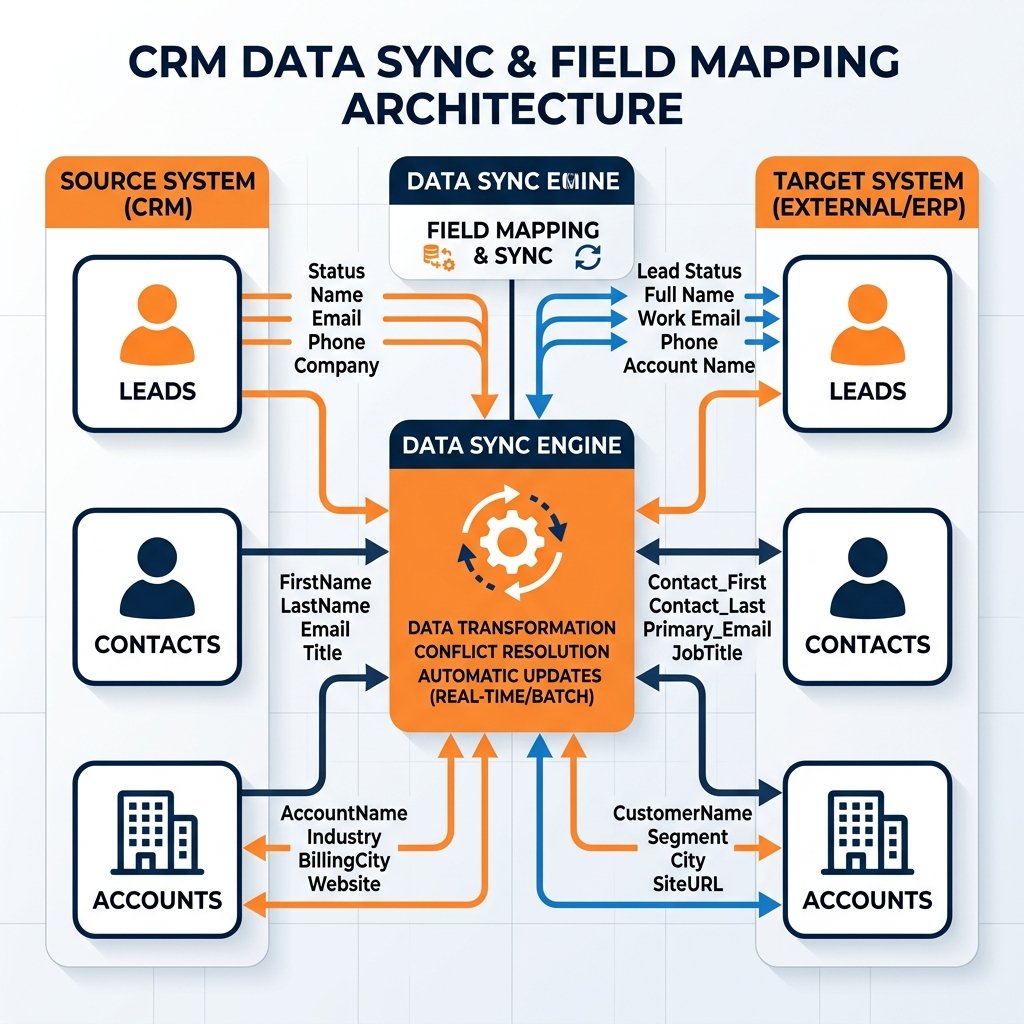
Salesforce and HubSpot handle CRM objects differently. Understanding these differences before importing prevents structural problems that are extremely difficult to fix after the fact.
| Salesforce Object | HubSpot Equivalent | Key Difference |
|---|---|---|
| Lead | Contact (Lifecycle Stage: Lead) | HubSpot does not separate Leads and Contacts. All people are Contacts differentiated by Lifecycle Stage. |
| Contact | Contact (Lifecycle Stage: varies) | Map Salesforce Contact status to the appropriate HubSpot Lifecycle Stage during import. |
| Account | Company | Direct equivalent. Import Companies before Contacts to enable proper associations. |
| Opportunity | Deal | Map Salesforce Stage values to HubSpot Pipeline Stage values. Do not import Closed Lost deals older than 24 months. |
| Task / Activity | Note / Task / Call | Historical tasks can be imported as Notes to preserve context. Native activity import is limited — use the import API for high-volume activity history. |
| Custom Object | Custom Object (Enterprise only) | HubSpot custom objects require an Enterprise subscription. Plan the schema before migration and validate that all relationships can be replicated. |
Planning a complex migration?
Don't risk data loss. Book a free strategy call with our certified architects to discuss your custom object mapping.
Book a CallStep 3: Import Sequence and Execution
The order of import matters. Importing in the wrong sequence breaks associations between records and requires manual cleanup that can take days.
- Import Companies first: Upload your Account export as Companies. Verify the import completed without errors before proceeding to contacts.
- Import Contacts second: Use the company domain column to automatically associate contacts to their parent company during import. Set Lifecycle Stage values explicitly in the import file — do not rely on default values.
- Import Deals third: Associate deals to their contact and company records using HubSpot's association columns. Include pipeline stage, amount, close date, and deal owner in the import file.
- Import Notes and Activities last: Historical context can be imported as notes associated to contacts. This is optional but valuable for deals that are mid-cycle at the time of migration.
Step 4: Post-Migration Validation
Never go live without a validation pass. Spot-check at minimum 5% of imported records across each object type. Verify associations are correct, lifecycle stages are accurate, and deal stages map to the right pipeline stage. Then run these specific checks:
- Duplicate detection: Run HubSpot's duplicate manager immediately after the contact import. Catch import-introduced duplicates before they enter workflows.
- Workflow activation test: Before enabling any automation, test each workflow with a real contact to verify it fires correctly and the enrollment trigger works as expected.
- Report parity check: Pull a count of contacts, companies, and deals from HubSpot and compare to your Salesforce export totals. Unexplained variances indicate import errors that need to be traced.
- Owner assignment audit: Filter contacts and deals by owner = None. Any unassigned records indicate a rep whose HubSpot account was not set up before import. Fix before reps go live.
5 Salesforce to HubSpot Migration Mistakes That Cost Companies Data
- Migrating all historical data: Contacts from 5 years ago who never engaged inflate your contact tier cost and pollute your active database. Set a clear cutoff: contacts with no activity in 18 to 24 months stay archived, not migrated.
- Not mapping Lifecycle Stages before import: Importing Salesforce Leads and Contacts without a lifecycle stage mapping means all contacts land as unqualified records. Your automation and segmentation breaks immediately.
- Using the native integration as the migration tool: The HubSpot-Salesforce native sync is designed for ongoing two-way sync, not one-time migration. Using it as your migration method creates sync conflicts and imported clutter.
- Skipping the pre-migration data cleanse: Every duplicate and dirty record in Salesforce will exist in HubSpot after migration. The cost to clean data post-migration is 3x higher than cleaning it before.
- Going live while Salesforce is still active: If reps continue logging activities in Salesforce during the migration window, you will have data in two systems that will never fully reconcile. Set a hard cutover date and enforce it.
Frequently Asked Questions
How long does a Salesforce to HubSpot migration take?
A straightforward migration with standard objects — Contacts, Accounts, Opportunities — takes 2 to 4 weeks including pre-migration data cleanup. Complex migrations with custom objects, Salesforce automations that need to be rebuilt in HubSpot, and large datasets over 100,000 records typically take 6 to 10 weeks.
Can you migrate from Salesforce to HubSpot without losing data?
Yes, but it requires careful preparation. The most common data loss scenarios are: orphaned contacts that lose their company association, deals that lose stage history due to stage mapping mismatches, and custom field data that does not transfer because the HubSpot property was not created with the matching data type. Following the correct import sequence and running post-migration validation prevents all three.
Should I use the native HubSpot-Salesforce integration for migration?
No. The native integration is designed for ongoing bidirectional sync between two active systems. Using it as a migration tool creates sync conflicts and can introduce duplicate records. Use HubSpot's CSV import process for the initial migration, then evaluate whether you need ongoing sync afterward.
What happens to Salesforce workflows and automations during migration?
Salesforce automations do not transfer to HubSpot. You need to audit every active Salesforce workflow, Process Builder automation, and Apex trigger, then rebuild the equivalent logic in HubSpot Workflows. This is often the most time-consuming part of the migration and requires understanding both platforms' automation engines.
How much does a Salesforce to HubSpot migration cost?
A self-managed migration with basic CSV imports can be done with internal resources if your team has HubSpot experience. A partner-managed migration for a mid-market company typically runs $8,000 to $20,000 depending on data volume, custom object complexity, and how many Salesforce automations need to be rebuilt in HubSpot.
Need a zero-downtime migration?
Our team specializes in complex Salesforce to HubSpot migrations for mid-market companies. Let's map your architecture.
Book a Free Strategy Call